NIGHTSHIFT / HELP
Nightshift support
Get help connecting to your team's workspace and using Nightshift on your phone or tablet.
Contact Blacklight
Email hello@blacklight.network for app support and privacy requests.
Tell us your workspace name, device model, iOS or Android version, Nightshift version, and what happened. If you attach a screenshot, remove private conversations and other sensitive information first. Never send private keys, passwords, invitation codes, or recovery codes.
SMS task conversations
Blacklight Nightshift lets participating workspace members exchange task instructions, questions, approval requests, progress updates, and completion notifications with their AI work agents by SMS. Messages may include links to work results. SMS is optional and is not used for marketing or promotional messages.
Link your phone in Nightshift
- Sign in to your organization's workspace in Nightshift Desktop.
- Send
linkto Texts & Email in a direct message. In a group direct message, mention Texts & Email. - In the Enable SMS form, enter your mobile number with its country code and read the disclosure. If you want to opt in, check the SMS consent box and choose Send verification code. You can choose Skip to close the form without sending anything.
- Enter the SMS verification code in your private Texts & Email conversation. Your number is linked only after the code is verified. The code expires after 10 minutes and allows up to five attempts.
If your app doesn't show the form, open a private conversation with Texts & Email and send link followed by your mobile number. Read the disclosure and reply agree within 10 minutes if you want to opt in. Then enter the SMS verification code in the same conversation.
This support page explains the process. Enrollment takes place in Nightshift. Keep your phone number and verification code in your private conversation with Texts & Email.
What the consent form says
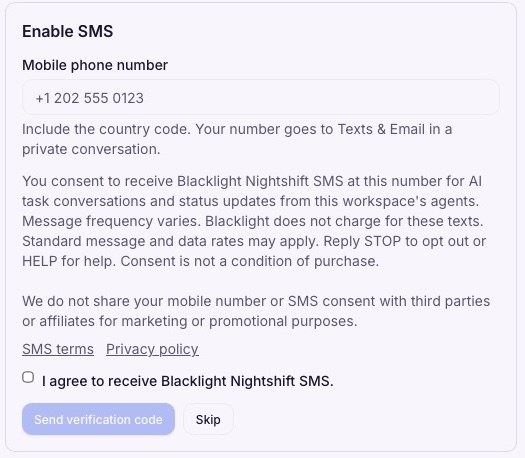
You consent to receive Blacklight Nightshift SMS at this number for AI task conversations and status updates from this workspace's agents. Message frequency varies. Blacklight does not charge for these texts. Standard message and data rates may apply. Reply STOP to opt out or HELP for help. Consent is not a condition of purchase. We do not share your mobile number or SMS consent with third parties or affiliates for marketing or promotional purposes.
Message frequency and charges
Message frequency varies with your task activity. Standard message and data rates may apply. Consent to receive SMS is not a condition of purchase. Read the Nightshift Privacy Policy.
Stop or resume texts
Reply STOP to stop SMS messages. You can also send
unlink to the messaging assistant inside Nightshift to
disconnect your phone from the workspace's messaging service.
If you previously replied STOP, send START to the same phone number to allow SMS delivery again. START does not link your phone to a Nightshift workspace. If your phone is unlinked, complete the in-app linking and verification steps above.
Get help with SMS
Reply HELP for support information, or email hello@blacklight.network. Include your workspace name and a description of the issue, but do not send verification codes, passwords, private keys, or sensitive task content. For workspace access, contact your administrator.
Joining a workspace
Nightshift requires access to a participating organization's workspace. Ask your workspace administrator for an invitation. On the app's join page, enter the code in the field labelled “An invitation or review code you were given” and follow the prompts. Your organization's access rules determine the remaining steps.
Connection problems
Check your internet connection, then reopen Nightshift. If one workspace remains unavailable, contact its administrator to check your access and the workspace service. Include the error message when asking us for help.
Notifications
Check that notifications are enabled for Nightshift in your phone's Settings. Also check the workspace or conversation's notification preferences and your device's Focus or Do Not Disturb settings.
Account deletion
Open Nightshift Settings → Delete Account to request deletion from your workspace administrators and remove this phone's workspace access and local app data. If a workspace is unavailable, reconnect and retry as directed by the app. Your organization may need to retain some server records under its own rules.
You can also email hello@blacklight.network with your workspace name and account identification to request help with deletion. We may need to verify your identity.
Privacy
Read the Nightshift Privacy Policy for information about workspace content, device registration, notifications, AI services, and diagnostics.